Value Intelligence
Value Intelligence answers a question that starts with an observable: what does MISP know about this value, across the records I can access? Use it to investigate a URL from an alert, compare a domain’s appearances in different events, enrich a hash, or review how an assessment changed over time. The event remains the source context; Value Intelligence brings those contexts together without merging them.
This chapter follows MISP 3.0.0, 3.0_wip commit 99ebee729. Screenshots show the real interface with fictional, organization-only, unpublished exercise events and IDS disabled on every exercise attribute. Only the local URL parser was run; no external intelligence provider was queried. Counts, available modules and assessments depend on your data, permissions, configuration and analyst profile. Select a figure to enlarge it.
Open intelligence for a value
Open Data points → Value Intelligence, paste a value into Look up, and choose Open intelligence. For the exercise below, use:
https://portal-invoice.example/signin?case=DOC-VALUE-001Use Search when you need to discover stored values rather than open a known value. The search guide explains word-start, prefix, inside-word and CIDR matching. A pasted list produces a worklist; Extract from text finds candidate observables in prose. Review the extracted candidates before investigating them: extraction identifies syntax, not maliciousness. For a value that legitimately contains a comma, check whether you need the offered whole-line interpretation rather than a split list.

The value page groups accessible occurrences, their events and organizations, sightings, enrichment answers and analyst contributions. Use the header’s counts as entry points into the corresponding tabs. Keep three distinctions in mind:
- A value is the text you are investigating. The same text can occur in attributes with different types or as a component of a composite attribute.
- An occurrence is a particular record with its own event, type, source context, observation times, IDS flag and audience.
- A correlation is a match produced under MISP’s correlation rules. An occurrence list can include records that do not participate in native correlation.
A page with no accessible occurrences does not establish that the value is harmless or absent from other organizations’ intelligence. You can investigate a new value without first creating an event; available enrichment can use an inferred or selected input type. Check that type before sending a request.
Exercise: investigate a reported sign-in link
Imagine an analyst receives a link from a reported email and later finds it in a gateway record. A third report quotes the same link as a benign control. The task is to distinguish those contexts, inspect the URL’s structure and document what the evidence supports.
To reproduce the example, create three events and add attributes. Keep them Your organisation only, unpublished, and set to_ids off. Use the following constructed data; these reserved names and addresses do not represent a real service. Event IDs are assigned by your instance and will differ from the screenshots.
| Event | Attribute whose value is the complete URL above | Additional context | URL observation window (UTC) |
|---|---|---|---|
| A — reported sign-in link, dated 1 November 2026 | Type url; comment identifying a fictional email report |
Domain portal-invoice.example; ip-dst 192.0.2.180 |
1 November, 09:00–09:10 |
| B — gateway follow-up, dated 3 November 2026 | Type url; comment identifying a constructed gateway follow-up |
Same domain; ip-dst 198.51.100.90 |
3 November, 14:00–14:30 |
| C — quoted benign control, dated 6 November 2026 | Type comment; explain that the URL is quoted text, not a connection |
Same domain | Leave unset: the quotation is not an observation window. |
Set first_seen and last_seen on A and B’s URL attributes. Through those attributes’ sighting controls, add a positive sighting for A at 1 November, 09:05 UTC, a positive sighting for B at 3 November, 14:15 UTC, and a false-positive report for B at 7 November, 12:00 UTC. Name the sources, for example Documentation email simulation and Documentation gateway simulation, and explain the false-positive assessment in a note. In the development interface shown here, the value header’s Add sighting action is disabled; use the underlying attribute’s controls. These timestamps describe the exercise; enter the equivalent times for your interface’s timezone. The IP addresses are deliberately supplied co-occurrence context, not DNS answers.
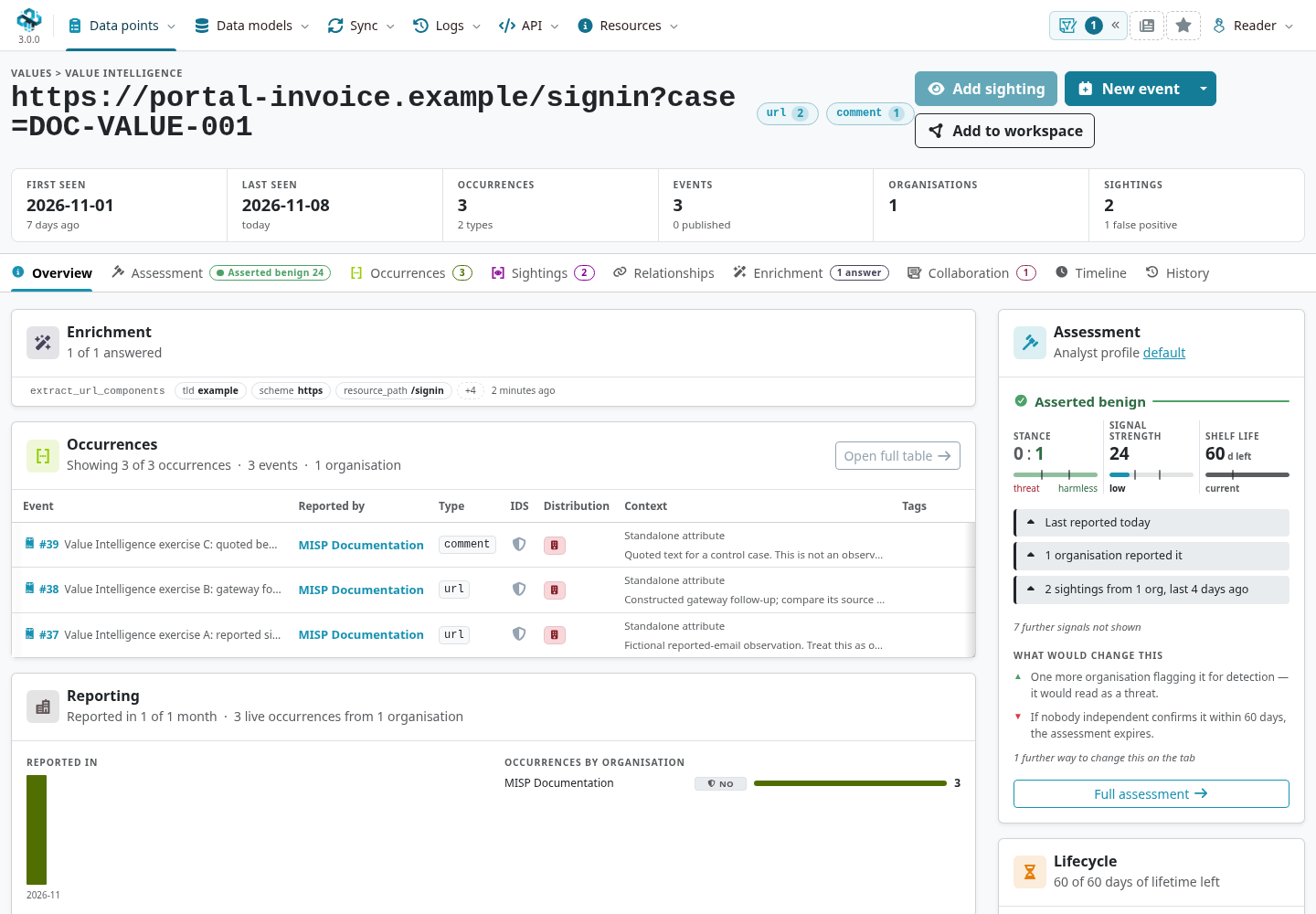
Look up the URL again. The overview shows three occurrences, three events and one organization. Two positive sightings and one false-positive report are separate counts. Three events from one organization do not establish three independent sources, and repeating a URL in a comment does not create another network observation.
Compare occurrences and correlate with other events
Open Occurrences and inspect each event link, type, comment and observation window. Use the type chips beside the value or the table’s filters to narrow to url; in this exercise, that leaves A and B. Clear the filter to restore the quoted comment from C. A filter changes the display, not the attributes or the correlation policy.
The time controls distinguish attribute creation/modification and event times from first/last seen. Filtering on first/last seen removes occurrences that have neither field set; it does not assign them an observation time. Use Columns to expose additional context and follow an event link when a shortened comment or row summary needs explanation.

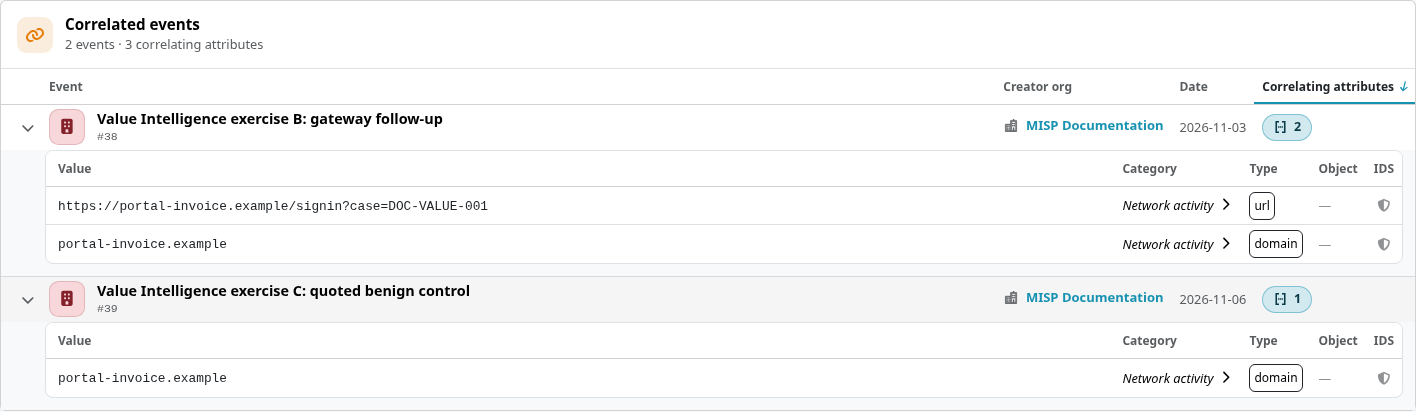
Next, open event A → Correlation and inspect the matching values behind each related event. The URL provides the native match to B. C’s comment occurrence does not provide a native URL correlation, but C can still appear as a related event because its domain matches A’s domain. An event-level count summarizes all its matching attributes; it is not the URL’s occurrence count. Other data on your instance, correlation exclusions or disabled correlation can change the result. See Correlation for matching rules, exclusions and the event graph.
Explore relationships without overstating them
Return to the value’s Relationships tab. In the same events lists the domain and the two constructed IP addresses. Group by value, event or object and use the available type, event and organization filters to understand which context produces a neighbor. Follow the domain into its own value page to continue a pivot.

Co-occurrence establishes that records appear together; it does not establish a DNS resolution, common owner or communication. The other relationship sections keep different evidence separate: dated object relations, engine-specific near-matches, cached external presence, object references and analyst assertions. Read each section’s explanation, including unavailable engines, scan bounds and cache scope. A near-match is not equality, and an external cache miss does not search every remote event or provider.
The Neighbourhood and full graph help navigate these connections. Opening a node or adding it to a workspace is an investigation step; it does not create an asserted relationship. The pivoting use case develops this discovery-and-validation workflow further.
Enrich deliberately and review the answer
Enrichment asks a module a specific question about a value and input type. It can extract structure locally or query an external service, depending on the module. Before running one, read its request context and check who operates it, what data it receives and whether its answer addresses your question. Some modules receive a full attribute structure rather than only the displayed text.
For this example, an administrator has configured misp-modules and enabled extract_url_components. This parser works locally and requires no reputation-provider account. If it is missing, check module-service availability, instance enablement, accepted types, organization restrictions and the effective analyst profile with your administrator. A profile cannot enable a module the instance does not offer.
- Open Enrichment and select extract_url_components in the module list to inspect its request.
- Confirm the input is being asked as
url. This value also has acommentoccurrence; that does not makecommentthe right parser input. - Press Run extract_url_components. Selecting a module or ticking its checkbox alone does not run it. Run … selected runs the checked modules.
- Expand the returned url object and read its attributes. Here it contains the original URL,
https,/signin,case=DOC-VALUE-001and the parsed domain, among other components.


Parsing does not contact the destination, resolve its current IP address or establish its reputation. The domain’s in MISP badge means an accessible stored value matches; inspect its event and type context before calling that corroboration. Known-value indicators are resolved for the current reader, rather than granting access to another user’s matches. A failed request, missing provider key or timeout supplies no clean bill of health.
Reuse answers and decide what to save
The answer is retained for your organization, separately from event attributes. Reopen the value, select the module and choose Show the rows to read the held answer without asking again. Check its age and input type before relying on it. A manual Run again or Ask again requests a fresh answer even when one is already held; the store retains the latest answer for that organization/value/module/type, not a complete sequence of every response.
Automatic execution requires both the effective profile’s auto declaration and the instance’s Plugin.ValueIntelligence_enrichment_auto_run setting, which defaults to off. The profile’s max_age_hours reuse window governs automatic reuse; it does not prevent a deliberate manual refresh. Profile-selected checkboxes and a stored-answer display are different from automatic execution. See module integration for the surrounding service configuration and other enrichment entry points.
A result is not automatically imported into an event. To turn a finding into a new record, use Pick on the desired result and open New event to review the proposed content and event settings. An object is picked as a whole, so inspect all its component attributes and suggested IDS flags. Check the audience, provenance and detection flags before creating the event; then review its tags and full context before publication. Parser defaults are not a detection decision. For an existing event, use the attribute enrichment and review workflow appropriate to that event.

Read the timeline and its gaps
Open Timeline to compare activity across the value’s accessible records. The activity chart, source lanes and chronology describe different kinds of dated evidence. Drag across the chart to select a period; the lanes and chronology follow that window. Select a source in the key or a lane to focus the chronology, and use Reset window to return to the broader period. Open a chronology entry to inspect its source record.
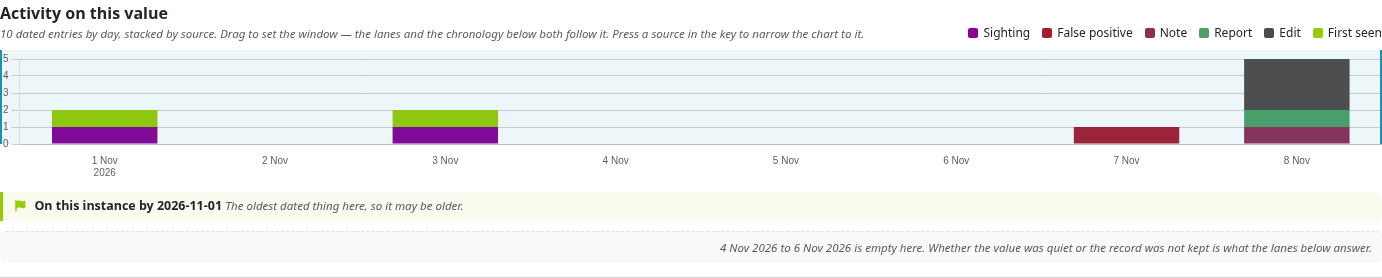

In the exercise, answer these questions:
- When was the URL reportedly observed? A’s span is 1 November, 09:00–09:10 UTC; B’s is 3 November, 14:00–14:30 UTC. These are the attribute
first_seen/last_seenclaims. - When were sightings recorded as having occurred? The positive sightings fall inside those windows; the false-positive report is dated 7 November. A false-positive report contradicts a detection interpretation; it is not another positive sighting.
- When was the information entered here? The exercise records, note and report were created on 8 November. Their creation/edit times are later than the observation windows. A header recency date does not replace an individual attribute’s observation time.
- What remains undated or incomplete? C’s quoted comment has no observation span. The events were never published, so their publication lane is empty. The instance did not record a full audit trail.

Do not read an empty period as proof of inactivity. A source might not have collected the data, a field might be unset, or a historical change might not have been logged. The timeline identifies precision and partial histories; some sources provide only first/latest states. Repeated marks from one event or edit do not become independent observations. On busy values, read truncation notices and distinguish whole-range totals from the selected window and displayed detail.
History is the audit trail
History answers who changed stored records and what changed, where that audit data exists. It does not replace Timeline or the observation fields. On the fixture, MISP.log_new_audit is off, and History explicitly says Not recorded. An administrator enabling it records changes going forward; it cannot reconstruct earlier edits. Even without that audit log, occurrence creation/latest-edit times and dated sightings can still appear on Timeline.

Interpret the assessment in context
Open Assessment and read the contributing signals, source organizations and explanation behind the label. See Analyst Profiles to choose, customize and test the rules behind that interpretation. MISP resolves the effective analyst profile from the user, then organization, then instance default. Weights, thresholds, exclusions and available evidence can therefore produce different readings for different analysts. Record the profile and the evidence when passing an assessment to a colleague.

In this constructed case, the false-positive report contributes to an Asserted benign reading. Investigate which occurrence and source it describes before generalizing to every use of the value. One organization repeating its own report is not independent corroboration. Similarly, a warninglist hit calls for context, while a miss means only that the checked lists did not match.
Signal strength, stance and shelf life are related assessment outputs, not substitutes for a decaying-model score. An expired assessment needs review; expiry does not establish benignness. A displayed label does not change an attribute’s IDS flag, create a global false-positive exclusion or guarantee downstream export filtering. See the false-positive use case for choosing the appropriate response.
Leave a reusable conclusion
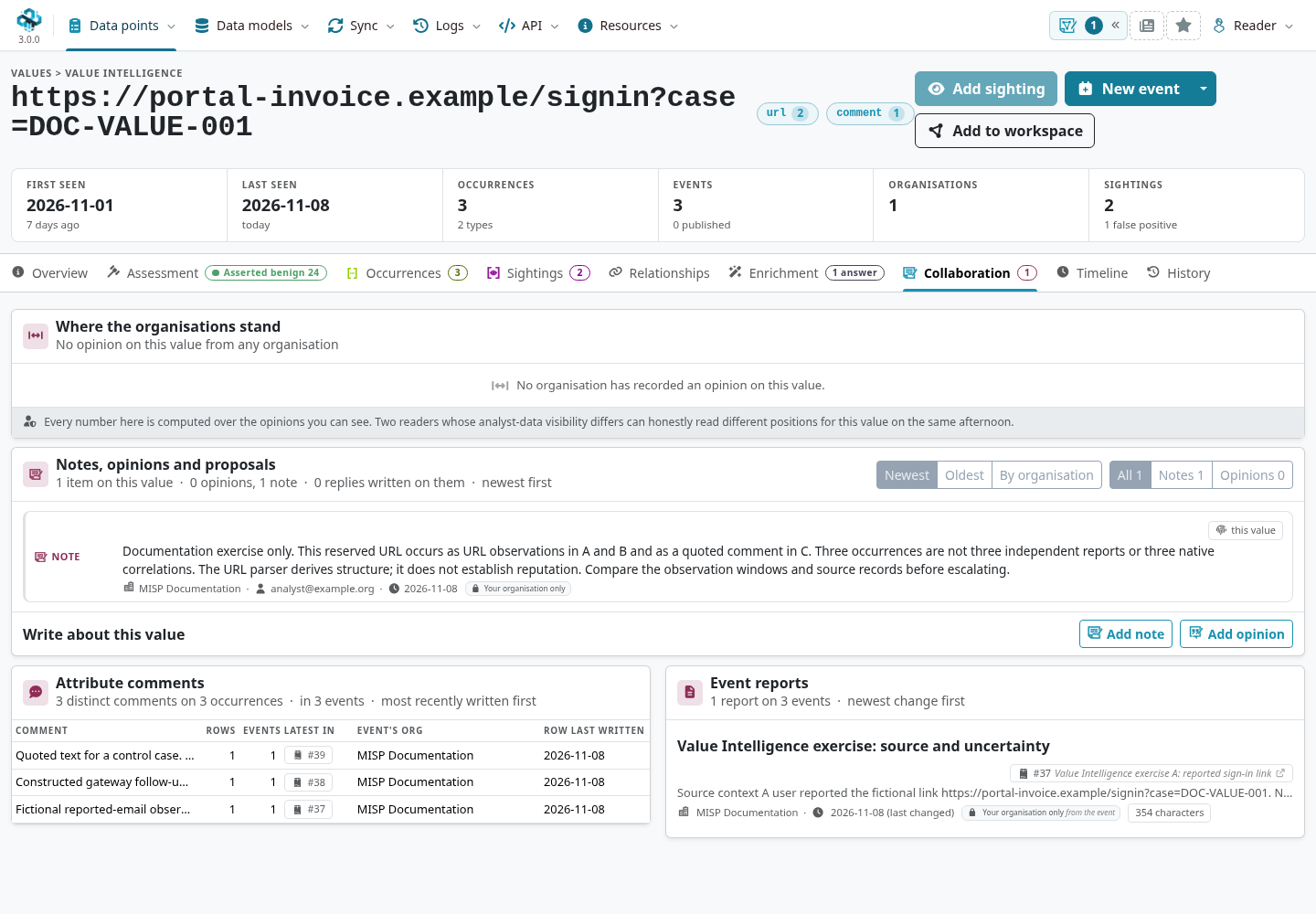
Use Collaboration → Add note to record reasoning that applies to the value across occurrences. For this exercise, a useful note is:
Fictional exercise: A and B contain URL observations; C quotes the text as a control. All three events come from one organization. Local URL parsing confirms structure only. Review the source reports, observation windows and B’s false-positive assessment before making a detection decision.
Choose the note’s distribution explicitly. Use an opinion for an assessment with its supporting explanation, and an Event Report for the source narrative. If a claim applies only to B’s gateway observation, attach it to that attribute rather than to the value as a whole. The Collaboration tab also brings together occurrence comments and reports from the value’s events; those retain their own scope.
From the header’s additional actions, Add to collection bookmarks the value in a collection for continued review. Collection membership and analyst contributions have their own access rules; neither widens access to the underlying occurrences. Use a workspace when you need an investigation canvas, and record an explicit relationship only when evidence supports that claim.
Finish the investigation with a decision and its limits: what was observed, which source supports it, which enrichment was performed and when, what contradicts the interpretation, and what would justify another review. For this exercise, the defensible result is a documented comparison of the three contexts, not a claim that the reserved URL is a real threat.